Installation step by step
This guide takes you from an empty computer to the first conversation with the assistant. No programming knowledge is needed, only a few terminal commands you can copy. If you already have Docker, start at step 2.
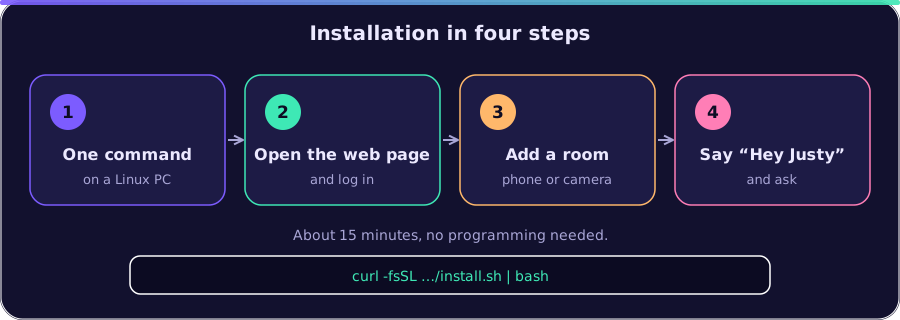
The quickest way: one command
Section titled “The quickest way: one command”In a terminal on a Linux computer (x86_64):
curl -fsSL https://raw.githubusercontent.com/naxeu/justai/main/scripts/install.sh | bashThe installer
- checks the computer and installs Docker if it is missing (asks first),
- downloads JuStAI into the folder
justai, - asks for the Google API key (step 3 explains where to get it; leaving it empty is fine) and an admin password,
- detects the computer’s address in the home network (for the HTTPS certificate and the camera search) and uses free ports if 8080/8443 are taken,
- builds and starts everything and finally shows address, user and password.
It speaks English, German or Italian, following the system language
(JUSTAI_INSTALL_LANG=de or it to choose). Running it again on an installed system
keeps settings, ports and password and only rebuilds.
Then continue with step 6 (first conversation). If Docker was just installed, log out and in again once. If you prefer to do every step yourself, follow the guide below.
What runs in the end: an assistant that listens for “Hey Justy”, sees through cameras, remembers things and answers in the room where it was addressed, in English, German or Italian. Ideas what to ask: EXAMPLES.md.
What you need
Section titled “What you need”| Minimum | Recommended | |
|---|---|---|
| Computer | PC, mini PC (e.g. Intel NUC) or server with an x86_64 processor that runs permanently | 4 cores |
| Operating system | Linux (tested: Ubuntu/Debian) | Ubuntu 24.04 LTS |
| Memory | 4 GB (JuStAI uses about 1.7 GB, measured) | 8 GB |
| Disk | 15 GB free (program about 3 GB plus database) | 30 GB |
| Network | in the same home network as cameras, phones and tablets | network cable |
| Language model | a free Google API key (step 3) or a local model (Ollama) |
No graphics card is needed. Raspberry Pi and other ARM computers are not supported. Windows and macOS (Docker Desktop) are not tested.
For talking and listening a phone, tablet or laptop with the device app is enough to begin with. Cameras with microphone and speaker (tested: TP-Link Tapo C200, also pan/tilt) turn whole rooms into places to talk.
Step 1: Install Docker
Section titled “Step 1: Install Docker”Docker is the program JuStAI runs in. In a terminal (Ubuntu/Debian):
curl -fsSL https://get.docker.com | sudo shsudo usermod -aG docker $USERThen log out and in again once (or restart the computer) so your user may use Docker. Check:
docker compose versionThe output must show Docker Compose version v2.24 or newer.
Step 2: Download JuStAI
Section titled “Step 2: Download JuStAI”sudo apt-get install -y gitgit clone https://github.com/naxeu/justai.gitcd justaiAll further commands run in this folder.
Step 3: Make the assistant talk (Google API key)
Section titled “Step 3: Make the assistant talk (Google API key)”Wakeword, speech recognition, speech output and image analysis run locally. To understand and answer, the assistant needs a language model. The easiest is Google Gemini:
- Open https://aistudio.google.com and sign in with a Google account.
- Get API key → Create API key. Copy the key (starts with
AIza…). - In the JuStAI folder create the settings file and enter the key:
cp .env.example .envnano .envChange the line # GOOGLE_API_KEY= into GOOGLE_API_KEY=AIza… (without #, with your
own key). Save with Ctrl+O, Enter, quit with Ctrl+X.
The key can also be entered later in the interface (Plugins → Gemini). The free tier has daily limits; when a limit is reached the assistant says so and switches to another model where possible. A cost limit can be set under AI providers. Entirely without cloud it works with a local model through Ollama (AI.md, DEPLOYMENT.md). What goes to Google and what does not is described in AI.md and SECURITY.md.
Optional in the same file:
| Line | Purpose |
|---|---|
JUSTAI_ADMIN_PASSWORD=… |
your own admin password instead of a random one (at least 8 characters) |
JUSTAI_DISCOVERY_DEFAULT_CIDRS=["192.168.0.0/24"] |
home network that may be searched for cameras |
JUSTAI_TLS_NAMES=["192.168.0.10"] |
IP address of the computer for the HTTPS certificate (can also be done later in the interface) |
Step 4: Start
Section titled “Step 4: Start”docker compose up -d --buildThe first time Docker builds JuStAI and downloads about 3 GB (program and speech models). Depending on the internet connection this takes a few minutes to half an hour. Afterwards JuStAI starts in seconds, also automatically after a restart of the computer.
It is ready when this command prints {"ok":true,…:
curl -s http://localhost:8080/api/healthStep 5: Log in
Section titled “Step 5: Log in”- Find the computer’s IP address (the first number of the output, e.g.
192.168.0.10):
hostname -I- In a browser (on the same or another device in the home network) open
http://IP-ADDRESS:8080, e.g.http://192.168.0.10:8080. - User
admin. The password is the one from.envor, if there is none, a random one:
docker compose exec core cat /data/initial_admin_password.txt- Set your own password: Settings → Users → admin → New password.
The interface language (English, German, Italian) can be switched at the top right; it follows the browser language by default. Other people in the household get their own logins under Settings → Users (role “resident”). Everybody can talk to the assistant, also without a login.
Step 6: A phone or tablet as microphone and speaker
Section titled “Step 6: A phone or tablet as microphone and speaker”The quickest way to the first conversation, without any camera:
- In the interface Rooms → + Room, e.g. “Living room”.
- Settings → Device app: if it says “This address is missing from the certificate”, click Add. Then Download JuStAI certificate and install it on the phone/tablet; the steps for Android, iPhone/iPad, Windows and macOS are right below. (The certificate is needed because browsers allow microphone and camera only over a secure connection.)
- On the phone/tablet open
https://IP-ADDRESS:8443/app, choose the language, leave microphone and speaker on, camera as you like, Start. - The device shows a 6-digit code. In the interface under Displays & device app enter the code, choose a name and the room.
- Say “Hey Justy” and ask your question, e.g. “What will the weather be like tomorrow?” – with or without a pause after “Hey Justy”.
JuStAI automatically creates an interaction endpoint in the room (the combination of microphone and speaker used for talking). To install it as an app: in Chrome/Edge menu → “Install app”, in Safari Share → “Add to Home Screen”. Details: DISPLAYS.md.
Typing instead of talking works in the interface under Conversations (field “Message to the assistant …”).
Step 7: Add cameras
Section titled “Step 7: Add cameras”Tested so far: the Tapo C200. Other cameras (ONVIF/RTSP) are worth trying but not yet verified, see tested cameras. Reports and help are welcome.
Prepare Tapo cameras (once, in the Tapo app):
- Camera → Settings → Advanced settings → Camera account: create user name and password.
- For speaker and panning JuStAI also needs the password of the TP-Link account (Tapo cloud password). It is stored encrypted and only sent to the camera in the home network.
In JuStAI:
- Devices → Search. Enter the home network under “Authorised network ranges”,
usually
192.168.0.0/24or192.168.1.0/24(the first three numbers of your own IP address, then.0/24). Search. - For the camera found click Add, enter name, room and credentials, Test, Save.
Cameras that are not found: Devices → + Device, driver
tapooronvif(other ONVIF/RTSP cameras), enter the IP. - After a few seconds the camera is
online; the live image runs in the device dialog under Image.
So the camera also listens and speaks: Rooms → in the room + Endpoint, choose the camera as microphone and speaker (and camera), save. Then click the wave symbol at the endpoint (Calibrate echo latency): the camera plays short tones and JuStAI measures how long it takes to hear them itself. This way the assistant never reacts to its own voice.
A room can have several endpoints (e.g. camera and tablet); the answer always comes where the wakeword was heard most clearly.
Step 8: People and pets
Section titled “Step 8: People and pets”Create family members and pets under People. For animals enter dog or cat as
species, the class names of the local image recognition. So that the assistant
recognises someone:
- Face: stand in front of a camera and say “Hey Justy, I am Anna. Please remember my face.” The assistant asks for consent.
- Voice: “Remember my voice.” (after a few sentences in the conversation). Then it recognises who speaks already by the “Hey Justy”.
Faces and voices are only stored with explicit consent and can be deleted at any time (VISION.md). A pet that is the only one of its species is assigned automatically when a camera sees a dog or cat.
Done – what now?
Section titled “Done – what now?”- Ideas to try: EXAMPLES.md.
- Change the wakeword, volume, echo: Audio and AUDIO.md.
- What goes to the cloud, adjustable per room: Rooms → room → Policies and AI providers → Privacy.
- A TV or old monitor as screen for answers: open
http://IP-ADDRESS:8080/displayand pair it under Displays.
Update, back up, remove
Section titled “Update, back up, remove”Install a new version (settings and data are kept), in the JuStAI folder:
git pull./scripts/install.sh(or docker compose up -d --build instead of the script)
Paired phones, tablets and displays load the new version by themselves.
Backup (contains database, settings and keys, so keep it safe):
./scripts/backup.shRestore and uninstall: DEPLOYMENT.md.
If something does not work
Section titled “If something does not work”| Problem | Solution |
|---|---|
permission denied … docker.sock |
Log out and in again after step 1. |
| Interface not reachable | docker compose ps: is core running and healthy? Otherwise docker compose logs core. Firewall: allow ports 8080 and 8443 in the home network. |
| Port 8080 taken | Set JUSTAI_HTTP_PORT=8090 in .env, docker compose up -d. |
| The assistant only says “Sorry, something went wrong.” | Usually the API key is missing or the daily limit is reached: Plugins → Gemini and Dashboard → AI providers (paused models are orange). |
| Phone shows a certificate warning | Install the certificate from Settings → Device app; the address used must be listed there under “Certificate valid for”. |
| Camera not found | Check the network range under Search; add it manually by IP. |
Camera offline |
IP changed? (Give it a fixed IP in the router.) Battery cameras sleep and are not suitable as microphones. |
| “Hey Justy” is not recognised | Audio: does the level move when you speak? Speak clearly and not too far away. |
| The assistant hears itself | Calibrate at the endpoint (wave symbol). |
| No sound from a camera | “Reconnect the camera in the office” by voice or Devices → Reconnect; see AUDIO.md. |
More: DEPLOYMENT.md.